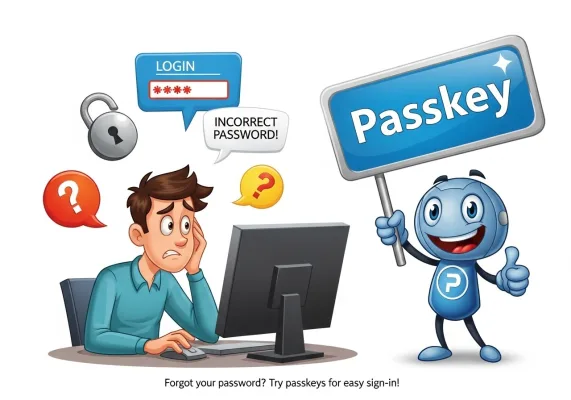
Say Goodbye to Passwords: Understanding Microsoft’s Windows Passkey Initiative
Say goodbye to password frustrations—Microsoft is going passwordless in 2025, and the solution is called the Windows Passkey. This secure sign-in method is coming to Windows 11, Microsoft 365, and Azure AD. If you’re not ready, you could be locked out of critical accounts.
Microsoft is actively rolling out support for passkeys in Windows, offering a more secure and convenient alternative to traditional passwords. This initiative promises to simplify how you log in to your favorite websites and applications on your Windows devices. Let’s dive into what passkeys are and how they’ll revolutionize your online security.
What are Passkeys?
Passkeys are a new, passwordless sign-in method that replaces traditional passwords with a unique digital credential stored securely on your device. Unlike passwords, which can be phished, guessed, or stolen from website databases, passkeys are tied to your specific device and the biometric or PIN authentication methods you already use to unlock it (like Windows Hello).
Think of it like this: instead of remembering a password for each website, your device generates a unique cryptographic key pair for each service you use. One key is stored securely on your device, and the other is registered with the website or application. When you want to log in, your device uses your fingerprint, facial recognition, or PIN to authorize the use of your private key, which then securely verifies your identity with the website.
How Do Passkeys Work in Windows?
Microsoft’s implementation of passkeys in Windows leverages the operating system’s built-in security features, primarily Windows Hello. Here’s a simplified breakdown of how it works:
- Website/App Support: When a website or application you use begins supporting passkeys, you’ll see an option during the sign-up or sign-in process to create a passkey.
- Key Generation: When you choose to create a passkey, Windows will prompt you to authenticate using Windows Hello (fingerprint, face, or PIN).
- Secure Storage: Once authenticated, Windows securely generates and stores a unique private key on your device, linked to your Windows user account. A corresponding public key is sent and stored by the website or application.
- Passwordless Login: The next time you visit the website or open the application on the same Windows device, you won’t need to enter a password. You’ll simply be prompted to authenticate with Windows Hello.
- Behind the Scenes: Windows will use your biometric data or PIN to unlock your private key and securely prove your identity to the website using the stored public key. This entire process happens seamlessly and securely in the background.
Benefits of Using Passkeys
The adoption of passkeys offers several significant advantages:
- Enhanced Security: Passkeys are significantly more secure than passwords. They are resistant to phishing attacks, as there’s no password to steal. They also eliminate the risk of password breaches on website databases that could affect your account on other services.
- Increased Convenience: Forget about remembering dozens of complex passwords! With passkeys, logging in becomes as simple as using your fingerprint, face, or PIN – something you likely do multiple times a day already.
- Stronger Authentication: Passkeys leverage cryptographic key pairs, which are far more robust than traditional password-based authentication.
- Cross-Platform Compatibility (Eventually): While currently focused on Windows, the underlying standards for passkeys are designed to be cross-platform. This means that in the future, you may be able to use a passkey created on your Windows device to log in on other devices and platforms.
How to Get Started with Windows Passkeys
As the Windows Passkey initiative rolls out, here’s what you can expect and how to set it up:
- Keep Your Windows Updated: Ensure your Windows operating system is up to date to receive the latest security features and passkey support. This is crucial for optimal functionality.
- Enable Windows Hello: Passkeys rely on Windows Hello for authentication. If you haven’t already, set up Windows Hello on your device:
- Go to Settings > Accounts > Sign-in options.
- Under the “Ways to sign in” section, select Windows Hello Face, Windows Hello Fingerprint, or PIN.
- Follow the on-screen prompts to set up your preferred biometric method or create a PIN.
- Create a Passkey for a Supported Service:
- Visit a website or open an application that supports passkeys.
- During the sign-up or login process, or in your account’s security settings, look for an option to “Create a passkey,” “Add a passkey,” or similar.
- When prompted by Windows Security, confirm your identity using your Windows Hello method (face scan, fingerprint, or PIN).
- Follow any final on-screen instructions from the website/app to complete the passkey creation. The passkey will then be securely stored on your Windows device.
- Look for Passkey Options: When you revisit a website or application that has passkey support, you’ll often see an option to “Sign in with a Passkey” or a similar prompt, making login seamless.
- Manage Your Passkeys: In Windows 11 (version 22H2 with KB5030310 or newer), you can view and manage your saved passkeys:
- Go to Settings > Accounts > Passkeys.
- Here you can see a list of your saved passkeys and remove them if needed.
Potential Questions and Considerations
- What if I get a new Windows device? The process for transferring or managing passkeys across new devices is still evolving. Microsoft and other platform providers are working on secure and user-friendly methods for this.
- What if a website doesn’t support passkeys? Traditional password logins will continue to work for websites and applications that haven’t yet implemented passkey support.
- Is my biometric data or PIN being shared with websites? No. Your biometric data or PIN is only used to unlock the private key stored securely on your device. The website only receives verification that you possess the correct private key.
- What about accessibility? Microsoft is committed to ensuring that passkeys are accessible to all users, and will likely provide alternative authentication methods for those who cannot use biometrics.
The Future is Passwordless
Microsoft’s commitment to passkeys in Windows is a significant step towards a more secure and user-friendly online experience. By embracing this passwordless future, we can reduce our reliance on vulnerable passwords and enjoy a smoother, safer digital life. Keep an eye out for passkey support rolling out to more of your favorite online services!
Visit Microsoft for more information.
For local support with setting up Windows Passkeys and ensuring your overall cybersecurity in Bowmanville, Ontario, please contact Full Spectrum Computer Services:
- Website: www.fscs.ca
- Email: solutions@fscs.ca
- Phone: 289-201-5911